The little light your laptop forgot.
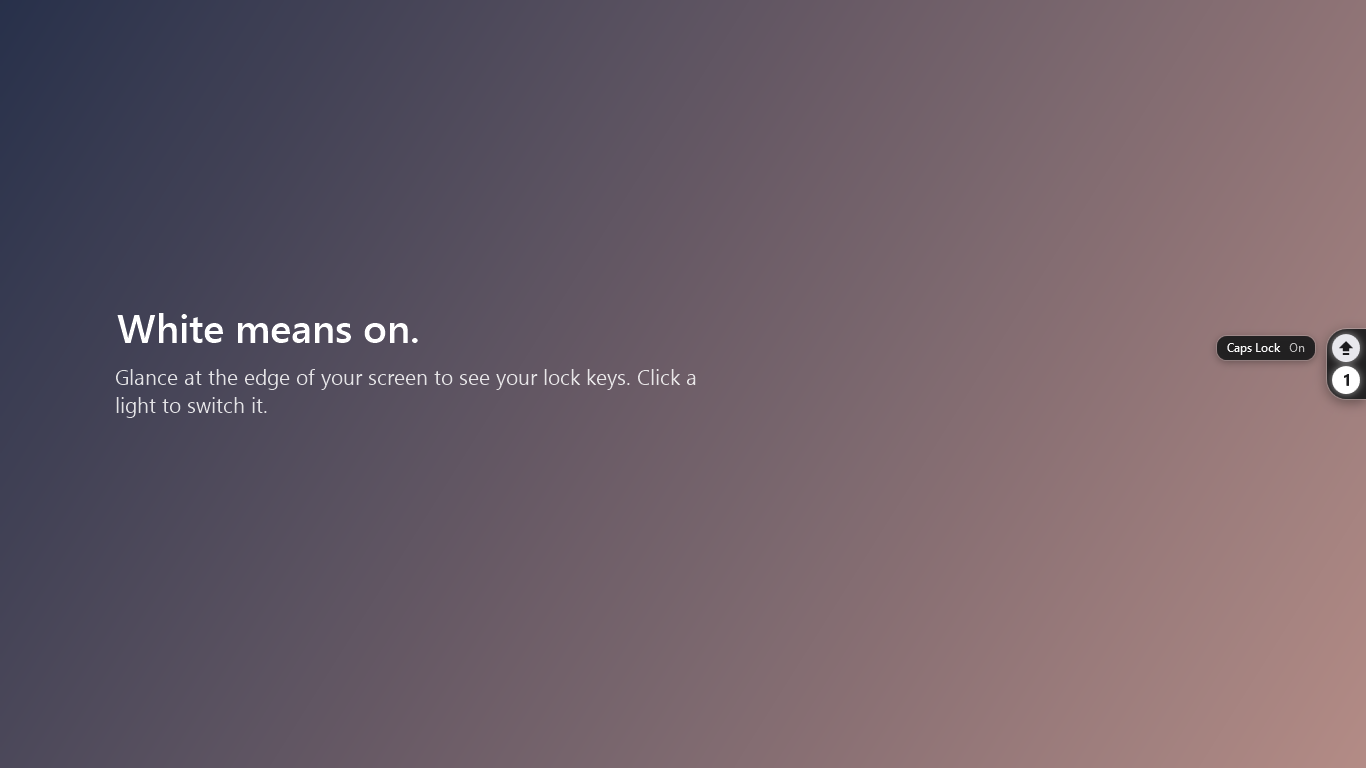
Press Caps Lock. The tab on the right is reading your keyboard.
Windows 11 all the way back to XP. One file that installs itself when you open it, no admin rights needed.
Know your keys before you type, not after.
How it works
One glance. One click. That’s it.
- Glance
White means on. A dim light is off. You can tell from across the room without reading a thing.
- Click
Click a light to switch its key, just like pressing it. Your cursor stays exactly where you were typing.
- Drag
Slide the tab anywhere along the edge. It remembers the spot for next time.
- Step aside
Hides during full-screen games, videos and slideshows, then comes back when you’re done.
- Hover
Point at a light to see its name and state in words, like “Caps Lock On”.
Private by design
It reads two switches and nothing else. LockSee doesn’t watch what you type, never goes online and collects nothing. There’s no account, no ads and no analytics, and that includes this website.
Read the privacy policy →Tech specs
Small enough to forget it’s there.
- Size
- About 100 KB. One file, and it installs itself.
- Resources
- Close to 0% CPU while idle and a few MB of memory, so it’s happy on a ten-year-old laptop.
- Windows
- 11, 10, 8, 7, Vista and XP. Windows 10 and 11 are ready as they are. Windows 7 needs Microsoft’s free .NET Framework 4 from Windows Update, and Vista and XP SP3 need .NET Framework 4.0.
- Install
- Open the file and it installs itself for you, with no admin rights and no setup wizard. It starts with Windows. Remove it from Settings › Apps, or from its own menu.
- Network
- None. LockSee has no internet code at all.
- Accessibility
- On and off differ in fill, not only in colour. Screen-reader names on every light, and motion turns off when Windows animations are off.
Questions
Good to know.
Windows says “Windows protected your PC”. Is it safe?
Yes. Windows shows that warning for new apps it hasn’t seen many times yet. Choose More info, then Run anyway. You’ll only see it once.
Does it work with an external keyboard?
Yes. Caps Lock and Num Lock are shared by every keyboard on your PC, so LockSee shows the right state whichever keyboard you press.
My laptop has no number pad. Why Num Lock?
On many laptops, Num Lock quietly turns some letter keys into numbers, which looks like a broken keyboard. LockSee shows you why in a glance.
How do I move it, hide it or quit it?
Drag the tab up or down. Right-click it, or click the tray icon, to hide it, reset its position, change startup or quit.
How do I uninstall it?
Right-click the tab and choose Uninstall LockSee, or find LockSee in Settings › Apps. Either way it removes the app and its preferences, leaving nothing behind.
Is there a Mac or Linux version?
No. Macs already have a light on the Caps Lock key and no Num Lock, and most Linux desktops can show lock keys in their panel. Windows is where the light is missing, so that’s where LockSee lives.